



How to Limit App Usage on Your Child’s Phone: Daily Limits and Schedules
If your child spends too much time on games, social media, or other apps, you do not have to block the phone completely. Two types of rules can help: a daily limit controls how long an app can be used, while a schedule controls when it is available.
With Kroha, parents can set app usage limits and schedules — for example, restricting games during school hours or before bedtime.


Daily Limits and Schedules: How They Work
You can control your child’s app use by setting daily time limits or scheduling specific hours when apps are accessible. Daily limits set a maximum allowed duration, while schedules block or allow app access at certain times of the day.
- Set daily limits: This caps the total time your child can spend on certain apps each day. When the limit is reached, access is paused.
- Create schedules: Define when certain apps should be available or blocked. For example, entertainment apps can be unavailable during school hours, homework, or bedtime.
- Combine limits with schedules: Set a daily usage limit and block the same apps during specific periods, such as school hours or bedtime.
Together, these rules make app restrictions more predictable for both parents and children.
Daily Limits vs. Schedules: What to Choose
Benefits of Daily Limits
Daily limits answer the question “how long?” They set the total amount of time an app or app category can be used during the day. For example, a child may have 60 minutes of game time and decide when to use it.
Benefits of Schedules
Schedules answer the question “when?” They define periods when certain apps are available or blocked — for example, during school hours, homework, meals, or bedtime.
When to Combine Both
Daily limits and schedules can also be used together. For example, games can have a 60-minute daily limit while remaining unavailable during school hours and before bedtime.
How Parental Control Apps Support App Limits
Parental control apps can make it easier to set and enforce app time rules. Once the rules are configured, the parental control app can apply them automatically, reducing the need for repeated reminders.
Using Kroha for Daily Limits and Schedules
Kroha lets parents set daily limits and schedules for app categories, remotely manage app restrictions, and create custom categories for apps that should follow the same rules. On Android, parents can also review individual app-usage statistics. On a child’s iPhone, App Lock features require the free Kroha Advanced version.
Automating these rules can reduce the need for parents to remind children each time a limit or scheduled restriction begins.
Built-In and Platform Tools
Android and iPhone also include built-in screen-time controls. On supported Android devices, Google Family Link lets parents set daily app limits, block individual apps, and use schedules such as Downtime and School Time. On iPhone, Apple Screen Time provides app limits and scheduled periods when access can be restricted. The best option depends on the devices your family uses and the level of control you need.
Setting App Limits Without Creating Conflict
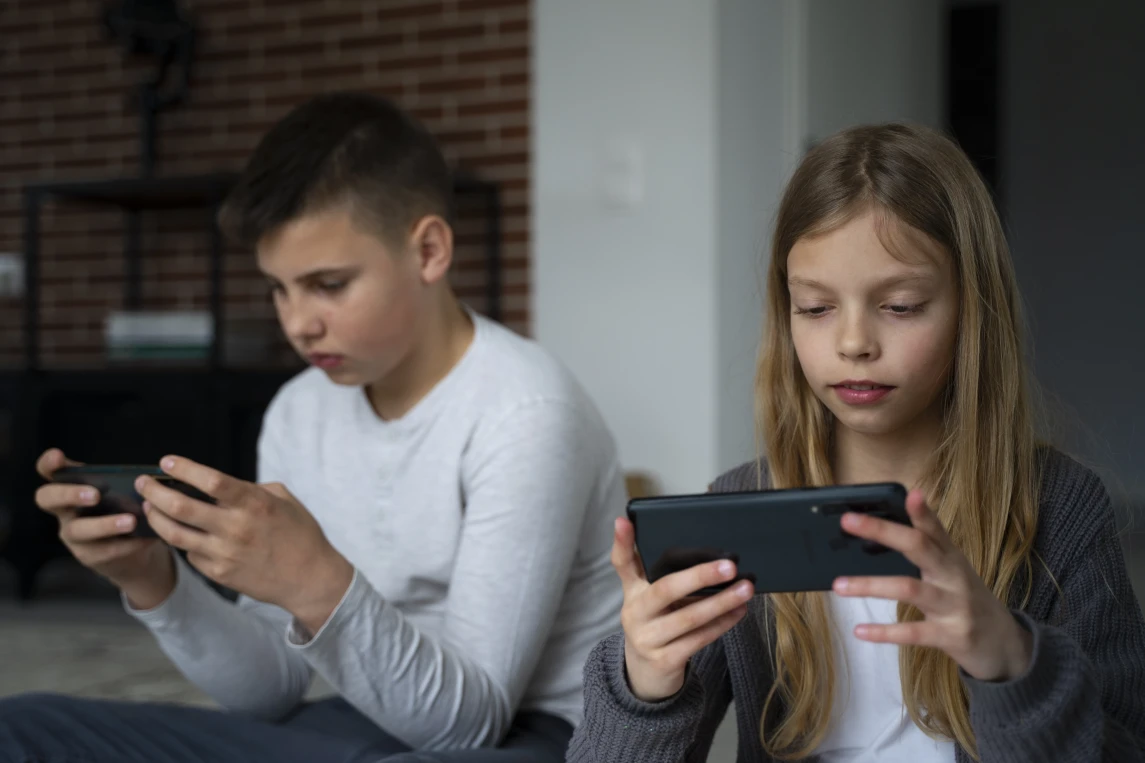
Sudden or unexplained restrictions may create more conflict, especially with older children and teenagers.
- Discuss rules openly and involve them in setting limits.
- Use limits to support shared goals, such as staying focused during homework.
- Adjust rules as they show responsibility and maturity.
- Use parental control apps to automate enforcement, reducing the number of reminders you need to give.
How to Set App Limits and Schedules With Kroha
The exact setup varies by platform. On Android, daily app-category limits and schedules can be managed through App Lock. On iPhone, you need Kroha Advanced to configure App Lock features.
- Install Kroha on your device and your child's phone following simple guided steps.
- Open App Lock in Kroha.
- Select an app category or create a custom category for the apps you want to manage.
- Add the relevant apps to the category.
- Set a daily usage limit for that category.
- Create a schedule for periods when the apps should be unavailable, such as school hours or bedtime.
- Review app-usage statistics and adjust the rules when needed.
Tips for Long-Term Screen Time Balance
- Review limits as your child grows and their needs evolve.
- Encourage offline activities instead of relying only on screen-time restrictions.
- Use app reports as conversation starters—not as reasons for punishment.
- Review the rules if they no longer fit your child’s routine.
Helpful Resources on Parental Control
For more guidance, see these related articles:
- How to Set Up Parental Control on Your Child’s Phone: A Complete Guide for Android and iOS
- Kids Using Phones at Night: How to Limit Screen Time
- How to See Which Apps Your Child Is Using
FAQ: How to Limit App Usage on Your Child’s Phone
Can I Set Different Limits for Different Groups of Apps?
Yes. Kroha lets you set limits for app categories and create custom categories containing the apps you want to manage.
How Does Scheduling Apps Help With Screen Time?
Schedules control when apps are available, making them useful for periods such as school hours, homework, or bedtime. Daily limits, by contrast, control the total amount of usage time.
Will My Child Know When an App Is Blocked?
In Kroha, children can see the restrictions that are set, including usage limits and scheduled locks.
What Happens When the Daily Limit Is Reached?
When the configured usage time for a Kroha app category runs out, apps in that category are blocked according to the set limit.
Can Daily Limits and Schedules Be Used Together?
Yes. You can set a daily usage limit and also schedule periods when the same app category is blocked.
Making App Limits Work for Your Family
There is no single app limit that works for every child. Consider your child’s age, school schedule, sleep routine, and how each app is used.
Start with a realistic rule, see how it works, and adjust it when needed. For entertainment apps, combining a daily limit with a schedule can help control both how long and when they can be used.
The goal is not to control every minute of screen time, but to make app rules clear and predictable for your family.
Recent articles

Instagram Parental Control & Message Tracking Guide
Instagram remains one of the most popular platforms among children and teens. Its visual nature, viral trends, and influencer culture make it especially appealing to younger users. With millions of active users worldwide, Instagram provides a space for creativity, self-expression, and social interaction. However, this popularity also brings significant challenges for parents concerned about their children's safety and well-being online.
In an age where digital presence is increasingly integral to social life, ensuring that children navigate Instagram safely is paramount. This article aims to help parents monitor and limit their child’s Instagram activity using built-in tools and advanced solutions like the Kroha app. By understanding the risks and utilizing effective parental control applications, parents can create a safer online environment for their children.


How to Talk to Your Teen About Parental Controls
Talking to a teenager about parental controls can quickly turn into an argument if they feel watched or mistrusted. Parents want to protect their child online, while teens want more privacy and independence.
The goal is to explain why digital boundaries exist, listen to your teen’s concerns, and agree on rules that support safety without turning parental control into punishment.
This guide explains how to start the conversation calmly, respond to resistance, and use tools like Kroha transparently and responsibly.