


Family Tracker vs Parental Control: Understand the Difference Before Choosing an App
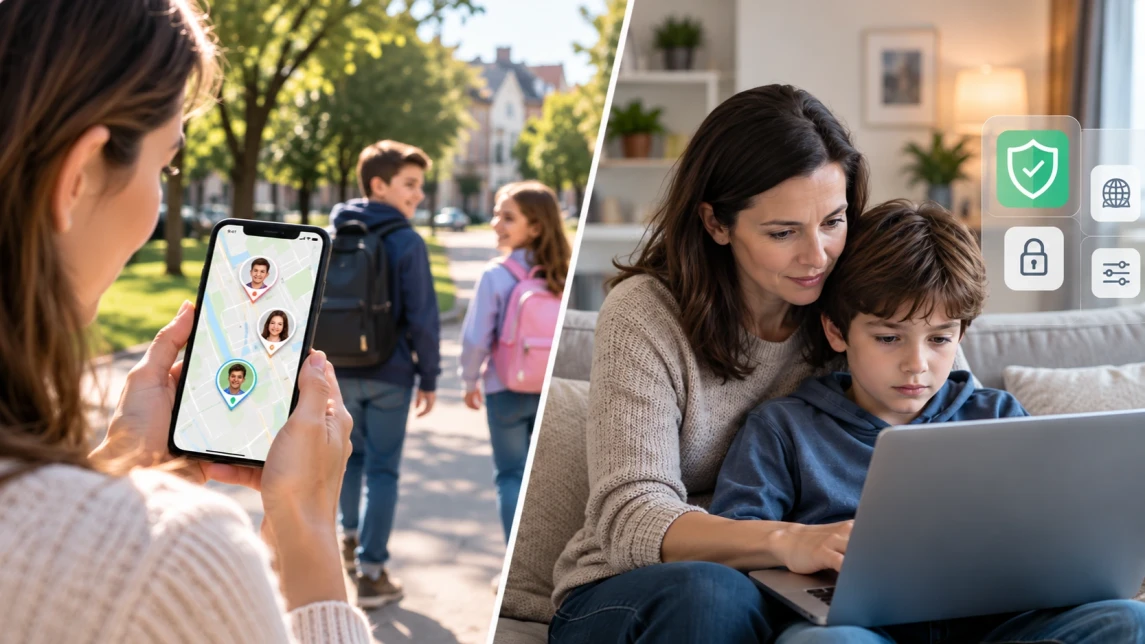
Parents search for a family tracker because the first question on their mind is “Where is my child?”
Yet location is only one part of child safety because some families also need a clearer view of a kid’s phone activity.
Based on these differing needs, there are three major kinds of tools, i.e., location sharing tools, family trackers, and parental control apps. While location sharing tools and family trackers focus mainly on location safety, parental control apps deal with broader device supervision and control.


Family Tracker Vs. Parental Control: The Difference in Simple Terms
The main difference between a family tracker and a parental control app is what the tool is primarily designed to manage. Family trackers are generally location-first, while parental control apps focus more broadly on how a child uses their device.
In practical terms, the distinction looks like this:
- Family trackers: Primarily help parents see where a child is, where they have been, or whether they have entered or left a particular place. Depending on the app, they may also include geofences, SOS alerts, route history, movement alerts, or additional activity information.
- Parental control apps: May include location tracking, but their broader purpose is to manage a child’s digital activity through controls like screen time, app blocking, content filtering, etc.
- Where they overlap: some family trackers now include limited device controls or deeper activity monitoring, while parental control apps often add GPS tracking, location history, and geofencing.
The Three Types of Child Safety Apps Parents Should Understand
Before we move into comparing products, it helps to first separate the three main categories parents commonly encounter.
Basic Location-Sharing Tools
Basic location tracking tools like Apple Find My and Google Maps location sharing are useful when the question is simply, “Where is my child right now?”
With them, parents can easily set up location sharing and stay updated on their child’s location without having to learn a separate child-safety dashboard’s navigation.
Common instances where these tools make sense are when a teenager is taking the bus home or visiting a friend and the parent only wants a simple location check.
However, their limitation is evidently that they are not designed to provide comprehensive parental controls.
So if a parent’s real concern is screen time, app access, web content, or broader device activity, location sharing alone cannot address it.
Family And Child Safety Trackers
Family trackers go beyond a dot on a map.
This category includes Life360, Family360, FindMyKids, and KidsFinder. Xnspy can be mentioned separately as a solution with more advanced device-monitoring capabilities that go well beyond those of a traditional family tracker.
Their main question is closer to: “Where are they, where have they been, and what other safety information do I need?”
Typically, family trackers’ capabilities include real-time GPS location, location history, safe zones, arrival or departure alerts, SOS tools, and movement-related information.
Note that individual products can extend beyond those basics.
Parental Control Apps
Parental control apps such as Kroha, Bark, Qustodio, and FamiSafe are designed around a broader question, i.e., “Where is my child and what digital-safety issues need managing?”
Depending on the product, their core functionalities can include:
- Screen-time schedules,
- App blocking,
- Web filtering,
- Content restrictions,
- Usage reports,
- Location tracking,
- Geofencing,
- Digital-activity alerts.
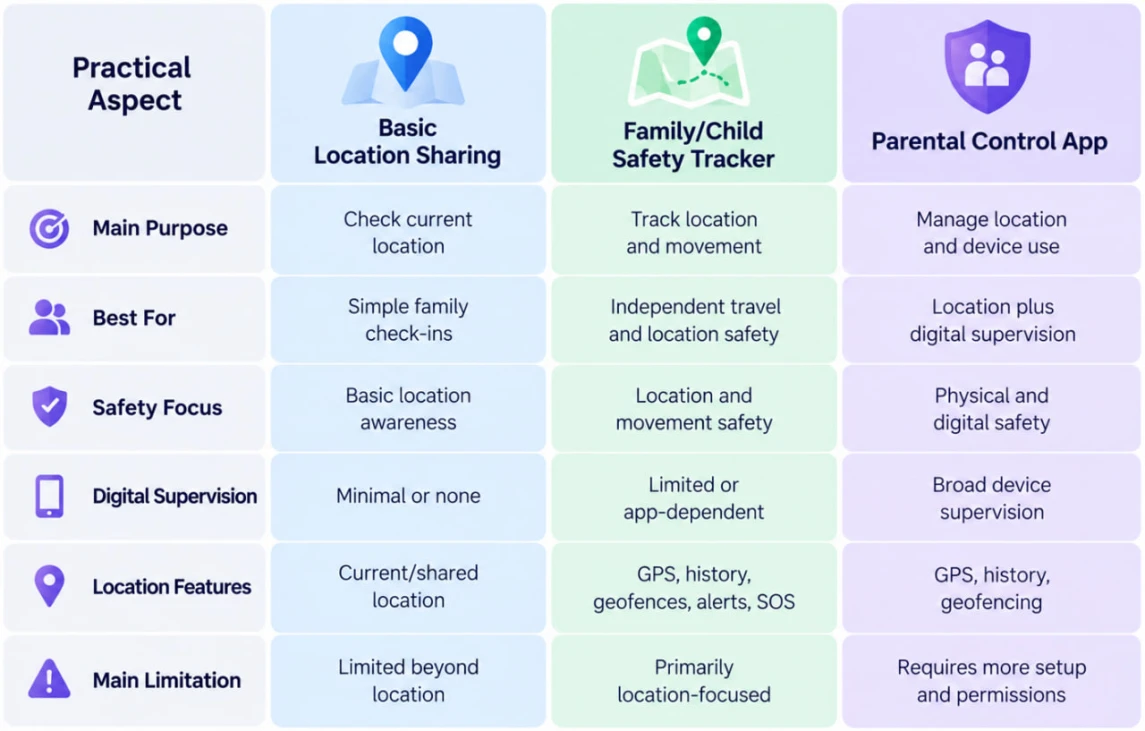
Family Tracker Vs. Parental Control: Quick Comparison
How The Three Types Compare In Everyday Family Use
While a feature table may show the broader difference between the three tools, it is the everyday use that truly reveals where each category actually fits.
Main Purpose: Tracking a Location Vs. Managing a Device
A location-sharing tool performs a narrow job well. It lets one person see another person’s location, which may be entirely sufficient when a child is traveling.
Family trackers, on the contrary, add context around that location. Instead of just showing where the child is now, they show previous moments, allow geofencing, and may include an SOS mechanism.
In comparison to the two, parental control tools start from a different premise. They answer bigger questions, such as whether a device should be available after bedtime, which apps can be opened, or what websites are accessible.
Best For: Match The App to The Actual Concern
The easiest way to choose the appropriate tool is to define the concern in one sentence before comparing products.
For example:
- I only want to know when my child is on the way home: Basic location sharing may be enough.
- My child travels alone, and I want to get alerts on specific locations: A family tracker is a more natural fit.
- Phone use is interfering with my child’s sleep and homework: Parental controls address the relevant problem directly.
- I need both location alerts and screen time limits: A parental control app with GPS features may reduce the need to manage separate tools.
Starting with the use case prevents a common mistake of choosing the app with the longest feature list even though many of those features will never be used.
Safety Depth: What Each Offers Beyond the Map?
Child-safety tools can be thought of as offering progressively different layers of oversight.
For example, basic location-sharing tools offer the lightest level of oversight because their main role is to facilitate simple check-ins. However, they fall short when parents need to go beyond current location and add alerts along with digital-safety controls.
Family trackers can fill that missing location-based safety context as they offer a wide range of features surrounding location details. Therefore, their strength is generally in helping parents understand a child’s movements rather than managing how the phone itself is used.
For supervising digital activity plus location at once, parental control apps are the appropriate option due to the depth of safety their features offer.
However, the deepest level of oversight is not automatically the safest choice. Age, maturity, device habits, the specific concern, and family expectations should determine how much visibility is appropriate.
Digital Supervision: The Biggest Difference Between The Categories
A clear distinction between location-first tools and parental controls is digital supervision.
That is because while a family tracker can tell a parent that their child arrived home at 4.15 pm, it cannot establish whether the child then spent five hours on their phone or used it well past bedtime.
That distinction matters because digital activity introduces
online risks that 72% of children surveyed had experienced at least once. And
those risks cannot be inferred from physical location alone.
Parental-control functionality can address this set of needs through screen-time schedules, app restrictions, web filtering, usage reports, or activity alerts.
Location Features: Current Position is Only the Starting Point
“Location tracking” can describe several very different capabilities.
Basic sharing typically shows a person’s current or recently reported position.
A purpose-built family tracker adds another layer by providing refresh information, movement history, saved places, geofences, entry or exit alerts, routes, and SOS functionality.
No location service should be treated as infallible, however, since GPS accuracy, connectivity, operating-system permissions, background activity, and update intervals can all affect what the parent sees.
Main Limitation: Every Category Gives Something Up
Basic location-sharing tools become limiting when the real concern is device behavior, while
family trackers offer fewer mechanisms for enforcing digital rules.
Parental control apps can combine several forms of supervision, but that breadth may be unnecessary for a family wanting simple location checks.
Moreover, their key limitation is that their configuration requires more attention.
How Kroha Compares With Popular Family Trackers
Choosing a family tracking app often comes down to the features parents actually need, since different apps take different approaches to monitoring and parental controls. Looking at Kroha alongside other popular options can help clarify where each app stands. The following comparisons focus on the functions parents are most likely to use.
Kroha Vs. Xnspy
Kroha and Xnspy both combine location tracking, device controls, and phone monitoring, but they emphasize these capabilities differently.
Kroha combines parental-control tools such as screen-time schedules, app and phone blocking, web filtering, and geofencing with a broad range of monitoring features.
For example, on supported Android devices, parents can view messenger history, calls and SMS, take screen captures and camera photos, check photos and contacts, review app and YouTube activity, and also listen to sounds around the child’s phone.
Xnspy also offers location tracking, geofencing, app blocking, screen-time insights, message monitoring, and screenshots.
But it extends further into several monitoring areas, including call recording, Android keylogging, email and Wi-Fi monitoring, broader communication tracking, remote data wiping, and alerts for selected words, contacts, locations, and SIM changes.
The main difference, therefore, is not simply that Kroha controls while Xnspy monitors, since both cover elements of both. Instead, we would say that Kroha is more balanced between parental controls and child-safety monitoring, while Xnspy places greater emphasis on detailed monitoring of device activity.
Feature availability can vary by operating system, device permissions, installation method, and app version.
Kroha Vs. KidsFinder
KidsFinder is another location-first child safety service, but it is not limited to plotting a phone on a map.
It currently has real-time location, seven-day route history, geofences, an SOS button, loud alerts, and app-usage monitoring.
In comparison, Kroha places more emphasis on actively managing the digital environment through app restrictions, screen-time schedules, and web controls.
That makes the choice largely dependent on the type of oversight parents need. KidsFinder is more suited to families that prioritize location awareness and safety alerts, while Kroha offers broader controls for managing a child's device use and digital habits.
Kroha Vs. Life360
Life360 is centered much more clearly on family location and movement safety.
Its basic plans include location history and place alerts, while higher tiers add features such as crash detection and SOS alerts.
Kroha, though, extends further into child-device management.
When we compared the practical questions each product answers, the distinction became clearer.
A family asking, “Has everyone reached the places they were supposed to reach?” may find Life360’s shared-location model closer to its needs. While a parent asking, “Can I set when my child uses particular apps and also check location?” is dealing with a parental-control use case instead.
Kroha Vs. FindMyKids
FindMyKids is designed around child-focused GPS safety, with features like real-time location tracking, location alerts, an SOS signal, app-usage statistics, and screen-time functions.
As is evident, the app has adjacent device-safety functions, but location and the child’s physical movement still remain central to its product experience.
However, we would choose Kroha if our main requirement is device management and remote controls.
How To Choose The Right Type Of App For Your Family
Parental control adoption is already high, with 47% of parents using them for smartphones. But are they also the right fit for you?
That decision can become far easier once you identify the problem.
Choose Basic Location Sharing If:
- You need simple location check-ins.
- Your child is mature enough to use location sharing.
- You do not need geofence alerts and phone activity reports.
Choose a Family Tracker If:
- Location is your primary concern.
- Your child regularly travels alone.
- Location history, geofences, routes, or SOS functions matter.
- Broader web and app rule enforcement is not the central requirement.
Choose a Parental Control App If:
- Location is only one part of the concern.
- Screen time needs enforceable limits.
- Particular apps require supervision and restrictions.
- Web content access needs to be managed.
- Usage reports are important for understanding device habits.
More Guides On Tracking And Digital Safety
Free Vs. Paid Parental Control Apps: Features, Limits & Upgrade Signs
Learn what built-in and free parental controls usually cover, where their limitations start to appear, and which needs may justify moving to a paid tool.
How To Track Your Child’s Location Through Their Phone
Explore the main ways a phone can be used for child location tracking, from built-in smartphone services to specialized parental-control tools.
How To Set Up Parental Control On Your Child’s Phone
See how parental controls can be configured on Android and iPhone, including screen-time limits, app restrictions, content rules, and parent access settings.
Conclusion: The Right App Should Match Your Needs
To put it all into a single sentence, a family tracker and a parental control app both contribute to child safety, but they are not interchangeable.
The app that will work the best for you is the one that fits your specific needs and is most relevant to address your concerns.
But you must also remember that technology works best when its level of oversight matches the child’s age and the actual risk.
Family Tracker Vs. Parental Control: FAQ
Does a family tracker still work if a child turns off location services?
Usually not reliably. If location services and the required permissions are disabled, the app may stop updating and show an older location until the setting is restored.
Do family tracking apps drain a child’s phone battery?
These apps can increase battery use because GPS, background updates, Wi-Fi, and mobile data all consume power. However, the actual impact depends on how frequently the app refreshes location.
Can parents track more than one child from the same app?
Many family trackers and parental-control apps support multiple children or devices under one parent account, although limits can vary by plan.
Will the same parental control features work on Android and iPhone?
No, Android and iOS have different permission systems, so some features may be available on one platform but restricted or unavailable on the other.
What should parents check in an app’s privacy policy before installing it?
Parents should check what data the app collects, how long it retains that information, whether it shares data with third parties, and how stored data can be deleted. Additionally, they should review encryption, data handling, permission requirements, and any other conditions for app usage.
Recent articles

Instagram Parental Control & Message Tracking Guide
Instagram remains one of the most popular platforms among children and teens. Its visual nature, viral trends, and influencer culture make it especially appealing to younger users. With millions of active users worldwide, Instagram provides a space for creativity, self-expression, and social interaction. However, this popularity also brings significant challenges for parents concerned about their children's safety and well-being online.
In an age where digital presence is increasingly integral to social life, ensuring that children navigate Instagram safely is paramount. This article aims to help parents monitor and limit their child’s Instagram activity using built-in tools and advanced solutions like the Kroha app. By understanding the risks and utilizing effective parental control applications, parents can create a safer online environment for their children.


How to Talk to Your Teen About Parental Controls
Talking to a teenager about parental controls can quickly turn into an argument if they feel watched or mistrusted. Parents want to protect their child online, while teens want more privacy and independence.
The goal is to explain why digital boundaries exist, listen to your teen’s concerns, and agree on rules that support safety without turning parental control into punishment.
This guide explains how to start the conversation calmly, respond to resistance, and use tools like Kroha transparently and responsibly.