



Best Parental Control Apps for Android in 2026: A Parent’s Guide to Features, Pros and Cons
Choosing the best parental control app for Android in 2026 depends on your child’s age, independence level, and the risks you need to manage. A younger child may only need screen time limits and app approvals, while an older child may need stronger tools for web safety, location, YouTube, games, or messenger activity.
This guide compares five parental control apps for Android — Google Family Link, Kroha, Qustodio, Bark, and Norton Family — by features, pros, cons, pricing, and best-use scenarios. The goal is to help parents choose an app that protects children online without creating unnecessary pressure or breaking trust.


Which Android Parental Control App Is Best?
The best Android parental control app depends on what your family needs most. Google Family Link is a good free starting point, Qustodio works well for reports and location, Bark focuses on social media alerts, Norton Family is strong for web filtering, and Kroha is suited for broader Android visibility. Below, we compare features, pros, cons, pricing, and real family scenarios so you can choose the safest fit for your child.
How to Choose a Parental Control App for Android — Key Criteria
Deciding on parental control software isn’t only about features. It starts with understanding your child’s developmental stage, the specific risks you want to manage, and what you’re comfortable investing, both financially and in time to configure controls.
Age and Independence Level
For younger kids, restricting access with clear app blocking and web filtering usually suffices. As children enter their preteen and teen years, they seek privacy and autonomy, requiring a shift toward monitoring tools that support trust and guided freedom rather than strict blocking.
The Type of Risk You're Managing
Identify if screen time overuse is the main concern, or if you need to control exposure to inappropriate content. Some families worry most about communication safety, such as social media and messenger interactions. Different apps address these risks in distinct ways, so align your choice accordingly.
Budget and Setup Complexity
Free apps offer basic controls and are handy for early phone users, but paid options often deliver richer controls and detailed insights. Choose an app that fits your budget and matches your comfort level for setup complexity, so you won’t shy away from important configurations.
Three Levels of Android Parental Control — What Features Actually Exist
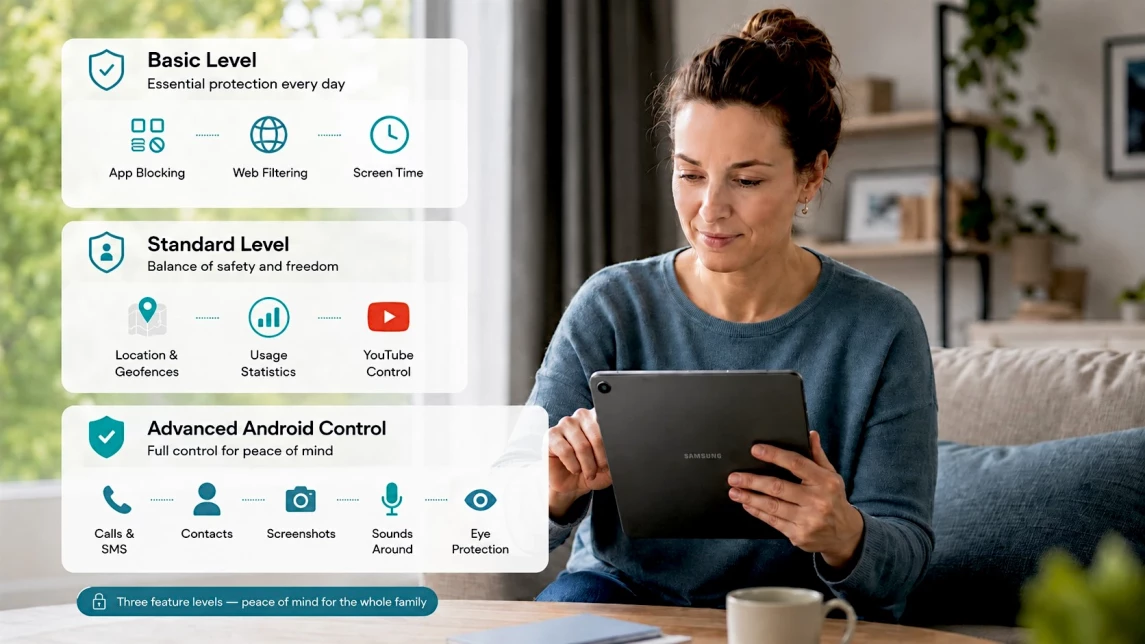
Parental control extends well beyond simply blocking apps. Understanding the levels of parental control helps you decide which capabilities your family truly needs. Each level requires its own optimal set of features in a parental control app, which we outline below.
Basic — App Blocking, Web Filtering, Screen Time Limits
Basic parental controls include:
- App blocking either entirely or on a schedule
- Web filtering by content categories to block inappropriate sites
- Daily screen time limits and schedules for balanced usage
- Managing app permissions like camera or location
All five reviewed apps include these features, but they cover only a part of the broader concerns families face today.
Intermediate — Location Tracking, Usage Stats, YouTube Control
Intermediate controls provide deeper insights:
- Real-time GPS tracking of your child’s Android device
- Geofencing with alerts when a child arrives or leaves set zones
- Detailed app usage statistics to understand time allocation by hour
- YouTube activity monitoring, including watch history and content restrictions
- Managing contacts and photos on the device
Google Family Link supports many basics and some intermediate features, but differences between apps become more apparent beyond this level.
Advanced — Messenger Monitoring, Call/SMS History, Screenshots, Surrounding Sounds
Advanced parental control covers:
- Monitoring of messenger histories from popular platforms
- Access to call logs and SMS records
- Screen captures of the child’s device for real-time insight
- Photo-related safety tools and surrounding sound monitoring
- Eye protection tools like automatic screen distance alerts
Kroha offers one of the broadest sets of advanced Android tools in this group, including several sensitive features that should be used with clear family rules. Bark takes a different approach by using AI alerts for social and text-related risks. Qustodio offers partial coverage for calls and SMS depending on setup and plan, while Google Family Link and Norton Family focus more on basic controls.
The 5 Best Parental Control Apps for Android in 2026
Here’s how each app stands out for Android families, presented with key features, strengths, weaknesses, pricing, and the families who benefit most.
Qustodio — Best All-in-One Suite and Location Tracking
Qustodio combines a wide range of features with an intuitive dashboard. Created by a team focused on digital family safety, it balances control with detailed reports and reliable child location features.
- Key features: Screen time and app blocking, detailed activity reports, location tracking with geofencing, YouTube monitoring and content restrictions (with platform-dependent limits on watch history).
- Pros: Comprehensive controls; clear, visual reports; geofencing alerts.
- Cons: Premium plans require subscription; some features need manual setup.
- Pricing: Premium plans start at $59.95/year.
- Best for: Parents wanting a comprehensive dashboard with detailed activity reports and reliable location tracking.
Bark — Best for AI-Driven Social Media and Text Monitoring
Bark prioritizes detecting risk signals through AI rather than blocking outright. This suits families with teens active on social media seeking safety with respect for privacy.
- Key features: AI alerts for worrisome content in texts, emails, and social networks; basic screen time and web filtering.
- Pros: Reduces burden of reading every message; advanced social media coverage; supports unlimited devices.
- Cons: Higher subscription cost; app blocking available but less granular than Qustodio/Kroha.
- Pricing: Plans start at $14/month. Bark Jr. is cheaper but doesn’t include full message monitoring.
- Best for: Parents of older kids or teens who want safety monitoring without reading every message.
Google Family Link — Best Free Built-In Option
Family Link integrates natively into Android with zero cost, offering straightforward screen time and app approvals. Its simple setup fits families starting with younger children’s first phones.
- Key features: Basic app blocking; screen time limits; device location tracking; simple activity reports.
- Pros: No subscription; native Android integration; easy for beginners.
- Cons: Limited content filtering and messaging control; less effective for teens.
- Pricing: 100% free.
- Best for: Younger children on their first phone; parents who need basic time and access control without a subscription.
Norton Family — Best for Web Filtering and School Mode
Norton Family focuses on strong web category filtering and supports distraction-free study with its School Time mode, backed by a trusted security brand.
- Key features: Detailed website filtering; time schedules; School Time mode helps limit distracting apps and sites during study hours.
- Pros: Excellent content filtering; supports hybrid or home learning environments.
- Cons: Less emphasis on social messaging or call monitoring; subscription cost higher than average.
- Pricing: Plans start at $49.99/year. Pricing varies; Norton Family may be bundled with Norton 360 in some regions.
- Best for: Families using hybrid or home learning who need strong web filtering and distraction-free study sessions.
Kroha — Best for Comprehensive Android Parental Control
Kroha is designed for parents who need more than basic screen time limits and app approvals. It combines app control, web filtering, location tools, YouTube control, usage statistics, and several advanced Android features in one parental control app.
- Key features: Screen time limits; app blocking; website filtering; real-time GPS and geofencing; YouTube history and blocking; messenger histories from 12 platforms; call/SMS details; contact and photo management; screenshots; photo-related safety tools; surrounding sound monitoring; eye protection.
- Pros: Covers a broad set of Android parental control needs, from screen time and app blocking to YouTube, location, messenger history, and advanced safety tools.
- Cons: Requires setup and permissions; advanced features should be used carefully and with clear family rules.
- Pricing: Premium plans start at $5.99/month.
- Best for: Parents of children aged 8–14 who need deeper Android visibility beyond basic screen time and location — especially when Google Family Link is no longer sufficient.
Feature-by-Feature Comparison
Understanding the differences side by side helps parents choose the best fit for specific needs: app control, content filtering, location safety, YouTube activity, messenger visibility, and advanced Android features.
App Blocking and Screen Time
All five apps provide basic app blocking and screen time limits. However, Kroha and Qustodio stand out with flexible scheduling by day of week and time slot. Kroha’s app blocking tools can be useful when parents want to limit games, social apps, or distracting apps during school time, bedtime, or family time. Bark emphasizes monitoring over active blocking. Google Family Link offers simple approvals or blocks without granular scheduling. Norton Family focuses on blocking specific categories during School Time.
Web Filtering and Safe Search
Norton Family and Qustodio excel in filtering multiple content categories and enforcing safe search. Kroha combines web filtering with extended Android controls for app and usage management. Google Family Link and Bark provide more limited web filtering options, with Bark prioritizing social monitoring instead.
Location and Geofencing
Real-time location tracking is standard across the apps, but Kroha and Qustodio offer location tracking and geofencing with arrival and departure alerts. This helps parents stay informed when children reach or leave important places such as school, home, or extracurricular activities. Google Family Link covers basic location sharing, suitable for younger children. Bark includes location as a secondary feature mainly focused on social safety.
YouTube Monitoring
YouTube usage often requires specific tools beyond general web filtering. Kroha and Qustodio provide YouTube-related controls, while Kroha’s YouTube monitoring includes viewing history and the ability to block unwanted videos or channels. Google Family Link offers basic YouTube restrictions linked to account settings. Norton Family and Bark have limited YouTube-specific controls, focusing on broader web or social monitoring instead.
Social Media, Messengers, SMS, and Calls
Parental needs for these features usually emerge with older children. Bark leads with AI monitoring of social media and messaging content, alerting parents without requiring them to read every message. Kroha provides messenger history on supported platforms, along with call logs and SMS details on Android devices where available. Qustodio offers partial coverage depending on plan and setup. Google Family Link and Norton Family focus on basic controls and offer little in this area.
Advanced Features — Screenshots, Surrounding Sounds, Eye Protection
Advanced tools such as screenshots, surrounding sounds, and eye protection are available in Kroha. These features can provide extra context in specific safety situations, but they are sensitive and should be used carefully, with clear rules and age-appropriate explanations. They are not necessary for every family and are best used only when there is a clear safety reason.
Which App Is Best for Your Family — 5 Real Scenarios
Different families face different stages and challenges. Aligning an app to your child’s age, independence level, and the type of risks involved ensures effective, respectful parental control.
First Phone for a Young Child (Ages 6–9)
Google Family Link works well as a free starter app offering basic screen time limits, app approvals, and simple usage rules. It’s enough to create phone-use boundaries without overwhelming setup or costs.
You're Worried About Inappropriate Content and Web Safety
For strong web filtering, Norton Family or Qustodio fit best. Both provide detailed category controls across many content types. Qustodio adds extra layers like location tracking and app usage reports, while Norton focuses on school and study time management.
Your Teen Is Active on Social Media and You Fear Cyberbullying
Bark’s AI-driven monitoring identifies warning signs in texts, emails, and social media conversations without requiring you to read everything. This less intrusive method helps maintain your teen’s trust while staying alert to potential risks.
Your Child Is 9–14 and Actively Uses YouTube, Games, and Messengers
Kroha can fit this scenario when parents need broader Android controls in one place: app limits, YouTube history, web filtering, geofencing, messenger history on supported platforms, and advanced safety features. This approach is most useful when simple screen time limits no longer give parents enough context.
Google Family Link Is No Longer Enough
When Google Family Link no longer covers your family’s needs, choose the next app based on the exact gap. Kroha is suitable when you need broader Android visibility across apps, YouTube, location, and supported communication features. Qustodio is a strong alternative if reports, content filtering, and location tracking are your main priorities. Bark may be better if your biggest concern is social media risk alerts.
How to Talk to Your Child About Parental Control — Without Breaking Trust
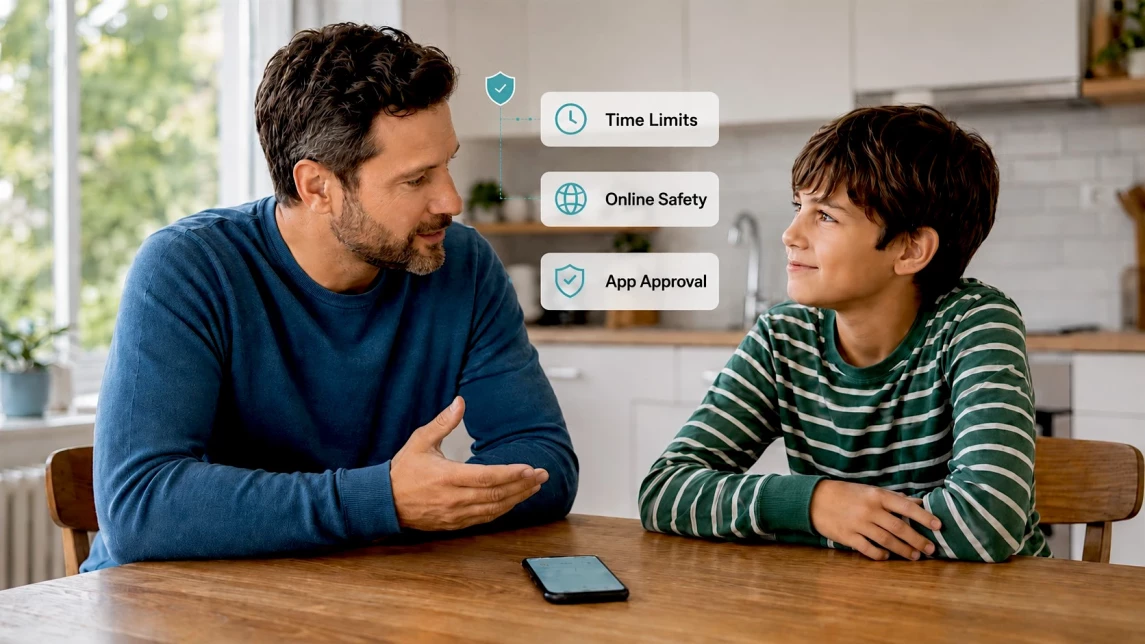
Open conversations about rules work best for shared understanding and respect. For children aged 8–10, use simple analogies about safety, like remembering to wear a helmet when biking.
For teens 11–14, frame parental controls as part of a mutual agreement balancing responsibility and freedom. This approach helps build trust rather than resentment.
Example phrases include:
- “We don’t want to monitor your every step — we just need to know you’re safe.”
- “A phone gives you many opportunities, so there need to be clear rules.”
- “The more responsibly you use your phone, the more freedom we can give you.”
These conversations set expectations and respect growing independence while keeping safety in focus.
Building rapport around these tools helps your child understand protection without feeling spied on.
Additional Resources on Parental Control for Android
These resources offer additional insights on effective parental control practices and digital safety strategies for Android devices.
- When Should a Child Get Their First Phone
- Free vs Paid Parental Control Apps: Features, Limits, and When to Upgrade
- How to Limit Access to 18+ Content on a Child’s Phone
Frequently Asked Questions About Android Parental Control Apps
Which parental control app is best for Android in 2026?
The best app depends on your child’s age and your family’s specific needs. Google Family Link is great for younger kids starting on phones. For broader control and monitoring, Kroha, Qustodio, Bark, and Norton Family each target different priorities like messaging safety, location, or content filtering.
Is Google Family Link enough for older kids?
Google Family Link covers the basics well for younger children but lacks advanced monitoring features valuable for older kids and teens. When your child grows more independent, additional apps like Kroha or Bark might be needed to bridge gaps.
What makes Bark different from other parental control apps?
Bark uses AI to scan messages and social media for concerning patterns rather than blocking content and reading everything directly. This approach suits families wanting to protect teens’ privacy while still staying alert to risks.
Are there free parental control apps for Android?
Google Family Link is the main free option with basic controls. Most other apps require subscriptions to unlock comprehensive features like detailed reports, location alerts, or messenger monitoring.
Can a child disable or uninstall a parental control app?
Apps vary in resistance to uninstallation. Paid solutions like Kroha offer settings and notifications to reduce the chance that children can easily disable monitoring, helping maintain consistent controls respectfully.
Conclusion — Which App Should You Choose?
The best parental control app for Android depends on what your family actually needs. Google Family Link is the best free starting point for a younger child’s first phone. Norton Family is a good fit for web filtering and school-time focus. Qustodio works well for families that want detailed reports, location tracking, and broad content controls. Bark is strongest for AI-based alerts around social media and messaging risks.
Kroha is a strong option when basic controls are no longer enough and parents need broader Android visibility across apps, web activity, YouTube, location, and supported communication features. The right choice is the one that protects your child, respects their growing independence, and helps your family build calm, consistent conversations about digital safety.
Recent articles

Instagram Parental Control & Message Tracking Guide
Instagram remains one of the most popular platforms among children and teens. Its visual nature, viral trends, and influencer culture make it especially appealing to younger users. With millions of active users worldwide, Instagram provides a space for creativity, self-expression, and social interaction. However, this popularity also brings significant challenges for parents concerned about their children's safety and well-being online.
In an age where digital presence is increasingly integral to social life, ensuring that children navigate Instagram safely is paramount. This article aims to help parents monitor and limit their child’s Instagram activity using built-in tools and advanced solutions like the Kroha app. By understanding the risks and utilizing effective parental control applications, parents can create a safer online environment for their children.


How to Talk to Your Teen About Parental Controls
Talking to a teenager about parental controls can quickly turn into an argument if they feel watched or mistrusted. Parents want to protect their child online, while teens want more privacy and independence.
The goal is to explain why digital boundaries exist, listen to your teen’s concerns, and agree on rules that support safety without turning parental control into punishment.
This guide explains how to start the conversation calmly, respond to resistance, and use tools like Kroha transparently and responsibly.