


Parental Controls for Co-Parents: How to Manage a Child’s Phone in Two Homes
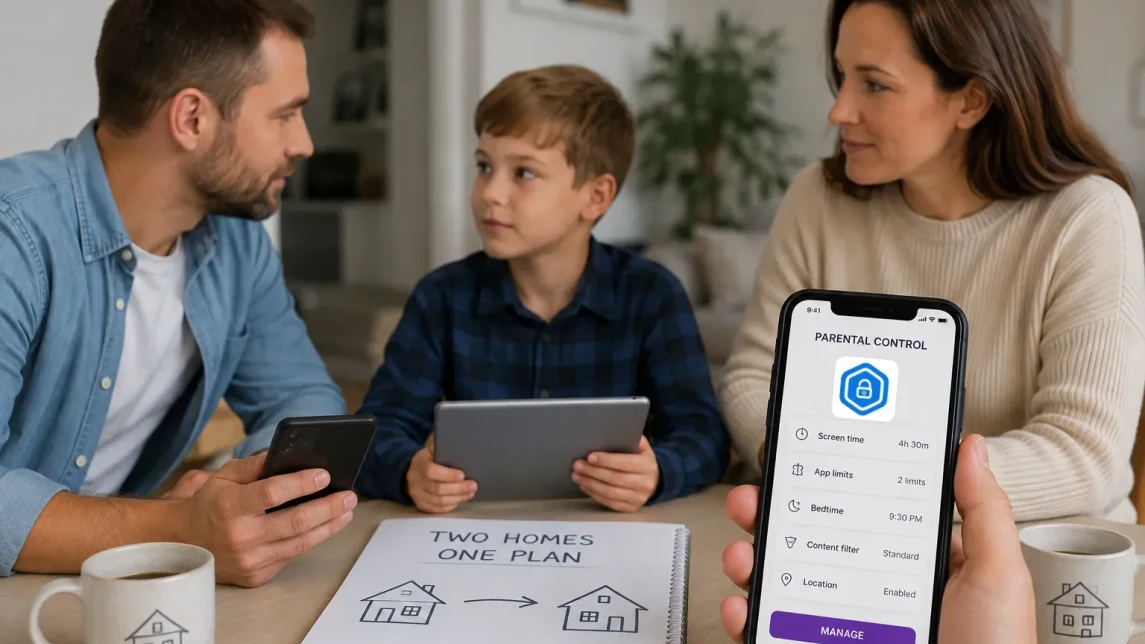
When a child regularly moves between two homes, keeping the same phone rules in place can be challenging. Different screen time limits, app restrictions, or bedtime rules can quickly lead to confusion and disagreements. The simplest approach is to agree on a shared set of rules and use parental controls that both parents can manage.
This guide explains how co-parents can agree on phone rules, choose the right parental control setup, and keep those settings consistent when a child moves between homes.


Start With Shared Phone Rules Across Both Homes
When a child spends time in two homes, the goal is not to make both households identical. It is to agree on the rules that matter most, such as daily screen time, bedtime restrictions, app downloads, and access to age-appropriate content. Both parents can then follow the same basic framework while allowing for differences in their daily routines.
Before choosing an app, decide which rules should apply in both homes. This might include screen time, bedtime phone use, app downloads, social media, and access to age-appropriate content.
- Agree on daily and bedtime screen time limits
- Decide which apps the child can install and use
- Set age-appropriate rules for websites, social media, and online content
- Decide how both parents will handle exceptions and rule changes
Common Parental Control Challenges in Co‑Parenting
The biggest challenge is often not the technology but the difference in expectations. One parent may allow more screen time, while the other may have stricter rules for games, social media, or bedtime phone use. If those differences are not discussed in advance, the child may receive conflicting messages about what is allowed.
Children may also notice the differences and ask for exceptions depending on which home they are in. Instead of trying to eliminate every difference, parents can agree on a small set of non-negotiable rules and decide together when exceptions are appropriate.
Setting Up Parental Control Tools Across Two Homes
Choosing the right parental control app can make it easier to follow agreed phone rules without constant negotiation. Look for apps flexible enough to sync settings to the child’s device regardless of location.
Google Family Link
Family Link can handle core controls such as screen time, app management, and content restrictions on supervised Android devices. However, families should check how parental permissions and account roles work in their specific setup, especially when two parents need to manage the same child’s device.
It can be a practical option for families using Google devices, but managing a child’s device across two homes may require careful account and permission setup.
Apple Screen Time
Apple Screen Time provides built-in limits for app use, downtime, content restrictions, and other device settings. With Family Sharing, parents can manage a child’s device through the family group, but the exact setup depends on how the family’s Apple accounts and devices are configured.
For co-parents who use separate Apple accounts or have different device setups, it is worth checking in advance which parent can change the child’s settings and how those permissions are shared. The goal is to avoid changing the same restrictions manually every time the child moves between homes.
Kroha Parental Control App
Kroha can help co-parents manage the same child’s device rules from their own parent devices, depending on the child’s device, operating system, plan, permissions, and setup. This is useful when both parents need visibility into the same rules rather than creating separate restrictions in each home.
With Kroha, parents can manage screen-time limits, app restrictions, schedules, web filtering, and device-use information from one connected setup. If both parents are involved in managing the rules, they should agree in advance who can change settings, how exceptions are handled, and when limits should be reviewed.
This makes Kroha most useful as a support tool for shared family rules, not as a way for one parent to override the other or monitor every detail of the child’s phone use.

How to Set Up Parental Controls for Co‑Parenting
- Agree on shared rules. Discuss screen time limits, app permissions, and content filters with the other parent, taking your child’s age and maturity into account.
- Choose a control app. Choose a parental control solution that allows the parents involved to access the child’s settings and manage the agreed rules remotely.
- Install and configure the app. Create the parent accounts, connect the child’s device, and apply the screen time, app, and content restrictions you agreed on.
- Communicate with your child. Explain the rules to your child before putting the restrictions in place. Make it clear which limits apply in both homes and which exceptions, if any, have been agreed by both parents.
- Review and adjust regularly. Review reports from the app and discuss with the other parent any necessary tweaks to rules based on your child’s evolving needs.
Tips for Reducing Conflict Between Parents
Agree in advance on how you will handle common situations: a child asking for extra screen time, downloading a new app, staying up later on weekends, or changing a restriction. Having a simple process for exceptions can prevent many arguments.
If your parental control solution supports multiple parent accounts, both parents can review the same activity information instead of relying on the child’s description of how the device was used.
Respect each other’s parenting style while keeping the child’s well-being as the central focus. Flexibility around special occasions or differing home routines can ease tensions.
Helping Your Child Build Healthy Screen Habits
Consistent phone rules make daily routines more predictable. Reasonable limits can also leave more time for sleep, schoolwork, hobbies, and offline activities.
- Set predictable screen time and bedtime limits
- Build regular breaks and offline activities into the routine
- Talk with your child about apps, games, and online content
- Use device features such as bedtime settings or reduced screen brightness when appropriate
Kroha also includes features such as Eye Protection and Night Mode, which can help parents manage screen use around bedtime and daily routines.
Helpful Resources About Parental Controls
Explore related resources for deeper insights into managing children’s screen time and digital safety.
- How to Set Up Parental Control on Your Child’s Phone: A Complete Guide for Android and iOS
- How to talk to a teenager about parental controls without starting a fight
- How to Disable Games on Your Child’s Phone Without Conflict
FAQ: Parental Controls for Children in Two Homes
How can two parents manage the same parental controls?
Agree on the basic rules first, then use a parental control solution that gives both parents appropriate access to the child’s settings. Decide in advance who can change restrictions and how you will handle exceptions.
Can parental controls use different schedules for weekdays and weekends?
Yes, many parental control apps allow parents to create different schedules for weekdays, weekends, bedtime, or other routines. The exact options depend on the app and device.
What should I do if my child tries to bypass parental controls?
First, discuss why the child is trying to bypass the restriction and check whether the rules are appropriate for their age and routine. Use a parental control solution with protection against unauthorized changes where available, and make sure both parents use the same settings.
Is it possible to monitor the child's phone from two devices?
Yes, some parental control platforms allow both parents to view activity and manage the child’s settings remotely. The available features depend on the app and device.
How do I handle disagreements over digital parenting?
Focus on the rules that affect your child’s well-being most: sleep, schoolwork, age-appropriate apps, bedtime phone use, and online safety. Avoid changing limits to punish the other parent or win an argument. If a parental control app provides activity reports, use them as a neutral starting point for discussion rather than as a way to blame each other.
Are parental control apps complicated to set up?
Many parental control apps provide step-by-step setup guides, so parents do not need advanced technical skills. Kroha is designed to make setup and everyday parental controls straightforward.
How do parental controls work when a child has two homes?
The controls are applied to the child’s device rather than to a particular home. The important part is making sure both parents agree on the rules and have the access they need to manage them.
Should both parents use the same parental control app?
Using the same solution can make shared rules easier to manage, especially when both parents need access to the child’s settings. More important than the specific app is agreeing on which restrictions should apply in both homes.
Conclusion
Managing a child’s phone across two homes starts with clear rules, not with the app itself. Agree on the limits that should apply in both households, decide how exceptions will be handled, and make sure both parents know how the controls are managed.
A parental control app can then make those shared rules easier to apply consistently. Kroha can help parents manage screen time, app access, and other device settings remotely, so the same basic rules can apply in both homes.
Kroha can help co-parents keep agreed phone rules consistent across both homes by managing the child’s device settings remotely. This is especially useful when both parents want to follow the same basic rules for screen time, app access, bedtime limits, and content restrictions.
Recent articles

Instagram Parental Control & Message Tracking Guide
Instagram remains one of the most popular platforms among children and teens. Its visual nature, viral trends, and influencer culture make it especially appealing to younger users. With millions of active users worldwide, Instagram provides a space for creativity, self-expression, and social interaction. However, this popularity also brings significant challenges for parents concerned about their children's safety and well-being online.
In an age where digital presence is increasingly integral to social life, ensuring that children navigate Instagram safely is paramount. This article aims to help parents monitor and limit their child’s Instagram activity using built-in tools and advanced solutions like the Kroha app. By understanding the risks and utilizing effective parental control applications, parents can create a safer online environment for their children.


How to Talk to Your Teen About Parental Controls
Talking to a teenager about parental controls can quickly turn into an argument if they feel watched or mistrusted. Parents want to protect their child online, while teens want more privacy and independence.
The goal is to explain why digital boundaries exist, listen to your teen’s concerns, and agree on rules that support safety without turning parental control into punishment.
This guide explains how to start the conversation calmly, respond to resistance, and use tools like Kroha transparently and responsibly.